9 GREP, Regular Expressions, sed and awk
After completing this chapter, you will be able to:
- Use
grepto search for patterns in files and data streams - Construct regular expressions to match complex patterns
- Apply extended regular expressions for advanced pattern matching
- Combine
grepwith other Unix tools for sophisticated text processing - Search genomic data for biological patterns like restriction sites and motifs
- Edit text streams with
sedand filter, reformat, and summarize columns withawk
9.1 Introduction to Pattern Matching
While the tools in Chapter 7 can filter and transform data, they work on whole lines or fixed positions. Pattern matching lets you search based on the content of text—finding lines that contain specific sequences of characters.
GREP (Global Regular Expression Print) is the Unix standard for pattern matching. Originally developed for the ed text editor in the 1970s, grep remains essential for bioinformatics, log analysis, and text processing.
9.2 Basic GREP Usage
At its simplest, grep finds lines containing a specific string:
Essential GREP Options
grep options
| Option | Description |
|---|---|
-i |
Case-insensitive search |
-v |
Invert match (lines NOT containing pattern) |
-c |
Count matching lines |
-n |
Show line numbers |
-l |
List only filenames with matches |
-o |
Print only the matched part |
-w |
Match whole words only |
-A n |
Show n lines after match |
-B n |
Show n lines before match |
-C n |
Show n lines before and after match |
Examples
# Case-insensitive search
$ grep -i "gene" annotations.txt

# Count matches (not lines, just the count)
$ grep -c ">" sequences.fasta

# Show line numbers
$ grep -n "ERROR" application.log

# Find files containing pattern
$ grep -l "experimental" *.md

# Remove comment lines (inverted match)
$ grep -v "^#" config.txt

# Show context around matches
$ grep -C 2 "significant" results.txt
9.3 Introduction to Regular Expressions
So far we’ve searched for literal text. Regular expressions (regex) let you describe patterns that match multiple strings (Friedl, 2006). A condensed syntax reference is in Appendix D, and the same patterns work in R (stringr) and Python (re).
For example, the pattern [ACGT]+ matches any sequence of DNA bases, while colou?r matches both “color” and “colour”.
Metacharacters: Characters with Special Meaning
Regular expressions use certain characters as pattern-building blocks (Table 9.2):
| Character | Meaning | Example |
|---|---|---|
. |
Any single character |
a.c matches “abc”, “a1c”, “a-c” |
* |
Zero or more of preceding |
ab*c matches “ac”, “abc”, “abbc” |
^ |
Start of line |
^Hello matches lines starting with “Hello” |
$ |
End of line |
end$ matches lines ending with “end” |
[] |
Character class |
[aeiou] matches any vowel |
[^] |
Negated class |
[^0-9] matches non-digits |
\ |
Escape special characters |
\. matches literal period |
The * in regular expressions is different from the * wildcard in the shell. In regex, * means “zero or more of the preceding character.” In shell globbing, * means “any characters.”
Anchors: Position Matching
Anchors don’t match characters—they match positions:
Character Classes
Character classes match any single character from a set:
Predefined character classes:
-
[[:alpha:]]— letters -
[[:digit:]]— digits (same as[0-9]) -
[[:alnum:]]— letters and digits -
[[:space:]]— whitespace -
[[:upper:]]— uppercase letters -
[[:lower:]]— lowercase letters
Quantifiers
Quantifiers specify how many times a pattern should repeat:
# Match "color" or "colour" (zero or one 'u')
$ grep "colou\?r" text.txt

# Three consecutive A's
$ grep "A\{3\}" sequence.txt

# Two to four T's
$ grep "T\{2,4\}" sequence.txt

# At least three G's
$ grep "G\{3,\}" sequence.txt

# G followed by zero or more C's: matches "G", "GC", "GCC", ...
$ grep "GC*" sequence.txt
Read the last example carefully: a quantifier applies only to the single character (or group) immediately before it. GC* does not mean “GC repeated”; it means “one G, then any number of C’s,” so it matches every line containing a G. To repeat the pair, group it: \(GC\)* in basic regex, or (GC)* with -E.
In basic grep, quantifiers like ?, +, and {} must be escaped with \. Use grep -E or egrep to avoid escaping.
9.4 Extended Regular Expressions
Extended regular expressions (ERE) add more metacharacters (Table 9.3) and don’t require escaping common quantifiers. Use grep -E or egrep:
| Character | Meaning |
|---|---|
+ |
One or more of preceding |
? |
Zero or one of preceding |
{n} |
Exactly n of preceding |
{n,m} |
Between n and m of preceding |
\| |
Alternation (OR) |
() |
Grouping |
Alternation: Matching Multiple Patterns
Grouping
Parentheses group patterns together:
The Plus Quantifier
Unlike * (zero or more), + requires at least one match:
9.5 Practical Bioinformatics Examples
Working with FASTA Files
# Count sequences (lines starting with >)
$ grep -c "^>" sequences.fa

# Extract all headers
$ grep "^>" sequences.fa

# Find specific gene headers
$ grep -i "kinase" sequences.fa

# Find sequences by organism
$ grep -E "^>.*Homo sapiens" proteins.fa

# UniProt headers look like ">sp|P69905|HBA_HUMAN ..."; match the
# accession field (the | is a literal pipe, so it must be escaped)
$ grep -E "^>sp\|[A-Z0-9]+\|" uniprot.fasta

# Sequences with no stop codon anywhere on the line
$ grep -v -E "TAA|TAG|TGA" orfs.txt
Searching for Biological Motifs
# Find restriction enzyme sites
$ grep -E "GAATTC" genome.fa         # EcoRI
$ grep -E "GGATCC" genome.fa         # BamHI
$ grep -E "G[ACGT]A[ACGT]TC" genome.fa    # Degenerate site (N = any base)

# Find potential ORFs (start followed by codons, then the first stop)
$ grep -oP "ATG([ACGT]{3})*?(TAA|TAG|TGA)" cds.fa

# Find poly-A tails
$ grep -E "A{10,}" transcripts.fa

# Find microsatellites (dinucleotide repeats)
$ grep -E "(AT){5,}" genome.fa
$ grep -E "(CA){5,}" genome.faNotice the *? in the ORF pattern. A plain * is greedy—it grabs as many codons as it can, so ATG([ACGT]{3})*(TAA|TAG|TGA) would run all the way to the last stop codon on the line. Adding ? makes the quantifier lazy, stopping at the first in-frame stop codon. Lazy quantifiers are not part of extended regular expressions (-E); they require Perl-compatible regex, which grep -P provides on GNU grep (Linux, WSL, Talapas). The BSD grep that ships with macOS lacks -P; there, install GNU grep with Homebrew (brew install grep, then use ggrep) or drop the ? and accept greedy matching. Also note that N is not a regex wildcard—write [ACGT] for “any base.”
Analyzing GFF/GTF Files
Log File Analysis
9.6 Combining GREP with Pipes
The real power of grep emerges when combined with other tools through pipes (Chapter 7):
# Count unique patterns
$ grep "^>" sequences.fa | sort | uniq | wc -l

# Extract sequence names without > symbol
$ grep "^>" sequences.fa | cut -c2-

# Find headers, then get organism names
$ grep "^>" proteins.fa | grep -oE "\[.*\]" | sort | uniq -c | sort -rn

# Process FASTA: count bases on each sequence line
$ grep -v "^>" sequence.fa | while read line; do
    echo -n "$line" | wc -c
  done
Extracting Matching Regions
The -o flag prints only the matched portion:
Context Searches
When you need to see what surrounds a match:
9.7 Processing Genomic Data: A Complete Example
Let’s work through a realistic analysis pipeline for human chromosome data.
Downloading the Data
# Download human chromosome 21 from UCSC (~13 MB compressed; the
# smallest human autosome, so it is a good size for practice)
$ wget https://hgdownload.soe.ucsc.edu/goldenPath/hg38/chromosomes/chr21.fa.gz

# Decompress it to a plain FASTA file
$ gunzip -k chr21.fa.gz
$ mv chr21.fa genome.fa

# Or work with a subset without decompressing everything
$ zcat chr21.fa.gz | head -1000 > sample.faThe UCSC file is soft-masked: repetitive regions are written in lowercase (acgt) rather than uppercase. Patterns like GAATTC will therefore miss sites that fall in masked regions. Add -i to grep, or convert everything to uppercase first with tr 'acgt' 'ACGT', if you want to count every occurrence.
Analyzing Sequence Content
Finding Restriction Enzyme Sites
# Count EcoRI sites (GAATTC)
$ grep -v "^>" genome.fa | tr -d '\n' | grep -o "GAATTC" | wc -l

# Count multiple restriction sites
$ for site in GAATTC GGATCC AAGCTT CTCGAG; do
    count=$(grep -v "^>" genome.fa | tr -d '\n' | grep -o "$site" | wc -l)
    echo "$site: $count"
  done

# Find context around restriction sites (50 bases each side)
$ grep -v "^>" genome.fa | tr -d '\n' | grep -oE ".{50}GAATTC.{50}" | head
Accounting for Soft-Masking
The counts above are undercounts. As the callout in Section 9.7.1 warned, the UCSC file is soft-masked—repeats are written in lowercase—and grep is case-sensitive, so a GAATTC that falls inside a masked repeat is invisible to the pattern. The fix, used throughout the Week 3 and 4 slides’ version of this walkthrough, is to uppercase the sequence with tr before matching:
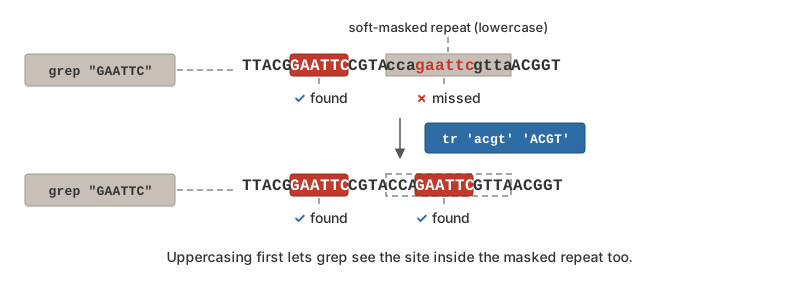
grep "GAATTC" finds the uppercase site but misses the lowercase copy inside a masked repeat, until tr 'acgt' 'ACGT' uppercases the sequence first.
# Count EcoRI sites in masked and unmasked sequence alike
$ grep -v "^>" genome.fa | tr 'acgt' 'ACGT' | tr -d '\n' | grep -o "GAATTC" | wc -l

# Nucleotide frequencies with masking folded in (expect a lot of N:
# the first ~5 Mb of chr21 is unassembled)
$ grep -v "^>" genome.fa | tr 'acgtn' 'ACGTN' | tr -d '\n' | fold -w1 | sort | uniq -c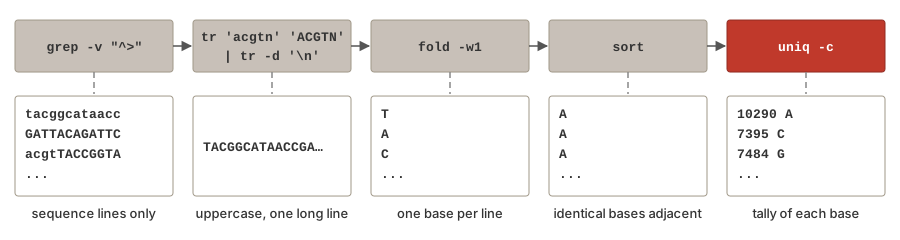
The same tool answers the classic first question about any genome, its GC content. tr -cd (complement, delete) keeps only the listed characters, so two counts and a division are all it takes; bc does the floating-point arithmetic the shell cannot (Section 10.3.3):
Note that counting only ACGT characters in the denominator deliberately excludes the Ns; whether that is what you want depends on the question. A single-pipeline variant of the same calculation appears in Section 7.8.7.
Letting the Masking Work for You: ORF-like Stretches
So far the soft-masking has been an obstacle to defeat with tr. It can also be information: lowercase marks repeat-derived sequence, and the uppercase remainder is the non-repeat fraction where genes mostly live. An uppercase-only pattern therefore searches only the unmasked sequence—no tr needed, because a single lowercase base breaks any match:
# ATG, then 20 or more in-frame codons, then a stop - masked repeats cannot match
$ grep -v "^>" genome.fa | tr -d '\n' | \
    grep -oE "ATG([ACGT]{3}){20,}(TAA|TAG|TGA)" > orf_like.txt

# grep -o writes one match per line, so counting the hits is just counting lines
$ wc -l orf_like.txt

# and awk ranks the three longest
$ awk '{ print length($0) }' orf_like.txt | sort -n | tail -3
Call these “ORF-like stretches,” not ORFs. The greedy * runs each match to the last in-frame stop before the pattern breaks, only one strand is searched, and real gene finding must handle splicing, codon bias, and much more. But twenty-plus codons of open reading frame in unmasked sequence is a respectable first filter—and the deeper lesson is worth keeping: sometimes annotation already embedded in the data (here, the case of the letters) can stand in for computation you would otherwise have to do yourself. The Week 4 slides run exactly this pipeline on chromosome 21.
Finding Simple Sequence Repeats
# Dinucleotide repeats
$ grep -v "^>" genome.fa | tr -d '\n' | grep -oE "(AT){5,}" | wc -l
$ grep -v "^>" genome.fa | tr -d '\n' | grep -oE "(CA){5,}" | wc -l

# Homopolymer runs (consecutive same base)
$ grep -v "^>" genome.fa | tr -d '\n' | grep -oE "A{10,}" | wc -l
$ grep -v "^>" genome.fa | tr -d '\n' | grep -oE "T{10,}" | wc -l
Stream Processing Large Files
Process data without loading it entirely into memory:
9.8 Common Patterns Reference
Table 9.4 is a quick reference for frequently needed patterns:
| Pattern | What It Matches |
|---|---|
^> |
FASTA headers |
^# |
Comment lines |
^$ |
Empty lines |
[ACGT]+ |
DNA sequence |
[ACGU]+ |
RNA sequence |
[A-Z]{3} |
Uppercase triplet (codon) |
ATG([ACGT]{3})* |
Potential ORF |
(TAA\|TAG\|TGA) |
Stop codons |
A{n,} |
Poly-A of at least n |
\t |
Tab character |
\s+ |
One or more whitespace |
[0-9]+\.[0-9]+ |
Decimal number |
9.9 Editing Text Streams with sed
grep tells you which lines match a pattern, but it never changes them. When you want to edit text as it flows through a pipe—replace one string with another, delete unwanted lines, or pull out just part of each line—the tool is sed, the stream editor. Like grep, sed reads input one line at a time, applies your instructions, and prints the result. It never opens an interactive window; you describe the edit on the command line and sed performs it on every line.
Substitution: s/old/new/
The workhorse sed command is substitution. The syntax is s/pattern/replacement/, where pattern is a regular expression using the same metacharacters you learned for grep:
By default s replaces only the first match on each line. Add the g (global) flag to replace every occurrence:
The / character is only a convention. If your pattern or replacement itself contains slashes (file paths, for example), pick a different delimiter such as | or #, and sed will use whatever character follows the s:
Printing and Deleting Lines
sed normally prints every line, edited or not. The -n option suppresses that automatic output, and the p command prints explicitly. Together they let you select lines by number—something head and tail can do only awkwardly:
An address can be a line number, a range, or a regular expression between slashes. Combined with the d (delete) command, this is a concise way to strip unwanted lines:
Note that sed '/^#/d' and grep -v '^#' produce the same output; use whichever reads more naturally in your pipeline.
Capture Groups
With -E (extended regex, exactly as in grep -E), parentheses capture part of the match, and \1, \2, … refer back to those captured pieces in the replacement. This is how you rearrange text rather than just replace it:
Read the second example carefully: ^> anchors to the header, ([^ ]+) captures everything up to the first space, .* swallows the rest of the line, and the replacement >\1 writes back only the captured identifier.
Editing Files in Place
Everything above writes to standard output and leaves the input file untouched. The -i option instead edits the file in place—and here two warnings are in order.
sed -i overwrites your file
There is no undo. A typo in the pattern can silently corrupt a file you spent hours creating. Write to a new file until you are confident the edit does what you expect:
-i
GNU sed (Linux, WSL, Talapas) and BSD sed (macOS) interpret -i differently. On macOS, -i requires an argument giving a backup suffix, and you must pass an empty string to mean “no backup”:
If you use the Linux form on a Mac, sed treats s/a/b/ as the backup suffix and then complains that file.txt is not a valid command. A portable alternative that works everywhere is to give a real suffix, e.g. sed -i.bak 's/a/b/' file.txt, which also leaves you a backup. On macOS you can also install GNU sed with Homebrew (brew install gnu-sed, invoked as gsed).
9.10 Working with Columns: awk
Much biological data is tabular: GFF and BED annotations, VCF variant calls, and the tab- or comma-separated spreadsheets that come off plate readers and flow cytometers. cut can pull out columns, but it cannot do arithmetic on them or decide which rows to keep based on a column’s value. awk (named for its authors Aho, Weinberger, and Kernighan) is a small programming language built exactly for this: it splits each line into fields and lets you filter, compute, and reformat by column.
The pattern { action } Model
An awk program is a list of rules of the form pattern { action }. For every input line, awk tests each pattern; when a pattern matches, it runs the action. Either half is optional: a pattern alone prints matching lines, and an action alone runs on every line.
Inside an action, $1, $2, … refer to the fields of the current line, $0 is the whole line, and $NF is the last field (NF is the number of fields). The variable NR is the current line (record) number. By default fields are separated by any run of spaces or tabs, so awk works on a GFF or BED file without any extra options.
Choosing the Delimiter
For CSV files, tell awk to split on commas with -F','. If the field separator is a single tab and some columns may be empty, use -F'\t' so that consecutive tabs are not collapsed into one:
Skipping Headers and Filtering Rows
Because NR counts lines, NR > 1 is the idiom for “skip the header.” Patterns can be any comparison or regular expression, and several can be combined with && (and) or || (or):
# Skip the header, print sample and OD600 columns
$ awk -F',' 'NR > 1 { print $1, $4 }' od600_readings.csv

# Rows where the OD600 (column 4) exceeds 0.8
$ awk -F',' 'NR > 1 && $4 > 0.8' od600_readings.csv

# BED intervals on chr21 longer than 1 kb
$ awk '$1 == "chr21" && ($3 - $2) > 1000' peaks.bed

# Genes on the minus strand (regex match on column 7)
$ awk '$3 == "gene" && $7 ~ /-/' annotations.gff

# Rows where column 2 is exactly "control"
$ awk '$2 == "control"' samples.tsv

# Number every line (like cat -n), then the whole line
$ awk '{ print NR, $0 }' data.txt
Actions can also transform values on the way out—awk does arithmetic on any field that looks like a number:
Range Patterns
A pattern can also be a pair of patterns separated by a comma. awk '/start/,/stop/' switches on at the first line matching the first pattern and off at the next line matching the second, printing everything in between—the same idea as sed’s two-address ranges in Section 9.9.2, but with the full power of awk’s patterns. The classic use is pulling one record out of a multi-sequence FASTA file by name:
The range is inclusive at both ends, which is why the second command trims the final line (head -n -1 prints all but the last line; it is a GNU extension, so on macOS use sed '$d' instead). One caution: a range pattern re-opens if the start pattern matches again later in the file, so this idiom is reliable for extracting a single uniquely named record, not for every selection task.
Computing Sums and Means with END
Two special patterns run outside the line-by-line loop: BEGIN before any input is read and END after the last line. END is where you report a total that you accumulated along the way. Variables spring into existence at first use and start at zero:
# Total length of all BED intervals
$ awk '{ total += $3 - $2 } END { print total }' peaks.bed

# Mean of column 4, skipping the header
$ awk -F',' 'NR > 1 { sum += $4; n++ } END { print sum / n }' od600_readings.csv

# Count gene features (equivalent to grep -c but by column)
$ awk '$3 == "gene" { n++ } END { print n }' annotations.gff
Controlling Output: OFS
When you print several fields separated by commas, awk joins them with the output field separator, OFS, which defaults to a single space. Set it in a BEGIN block (or with -v OFS=...) to produce tab- or comma-separated output:
For fully formatted output, awk also has printf, with the C-style format strings you may know from other languages: %s for a string, %d for an integer, %f for a fixed number of decimals. A number between the % and the letter sets the field width, a - left-justifies, and .1 limits the decimals, so %-6s %8.1f means “the string in a left-justified 6-character field, then the number right-justified in 8 characters with one decimal”—which is how the gene_means.sh script of Chapter 10 lines its group means up in neat columns. Unlike print, printf adds no newline of its own; end the format string with \n.
A Bioengineering Example: Mean per Treatment
Suppose a plate reader exports a CSV with sample name, treatment, and OD600 columns:
sample,treatment,od600
S01,control,0.42
S02,control,0.45
S03,IPTG,0.81
S04,IPTG,0.79
S05,IPTG,0.85
To compute the mean OD600 for each treatment we need one running sum and one count per treatment. awk’s associative arrays—arrays indexed by a string instead of a number—make this a one-liner:
For each data line, sum[$2] accumulates the OD600 under the treatment name in column 2 and n[$2] counts the samples. In END, for (t in sum) loops over every treatment seen (in no particular order—pipe the output through sort if you want it alphabetical). This same pattern—group by one column, aggregate another—answers a large share of everyday questions about tabular data, and it runs at the speed of the disk on files far too big to open in a spreadsheet.
Choosing the Right Tool
A useful rule of thumb: grep finds lines, sed edits text, awk works with columns. They overlap—each can delete comment lines, for instance—but each is clearest at its own job, and they chain together naturally in a pipeline (Table 9.5).
grep, sed, and awk
| Tool | Best at | Typical call | Example |
|---|---|---|---|
grep |
Selecting lines that match a pattern | grep -E 'pattern' file |
grep -c "^>" seqs.fa |
sed |
Editing text within lines | sed 's/old/new/g' file |
sed 's/T/U/g' gene.fa |
awk |
Filtering and computing on columns | awk 'pattern { action }' file |
awk '$3 == "gene"' genes.gff |
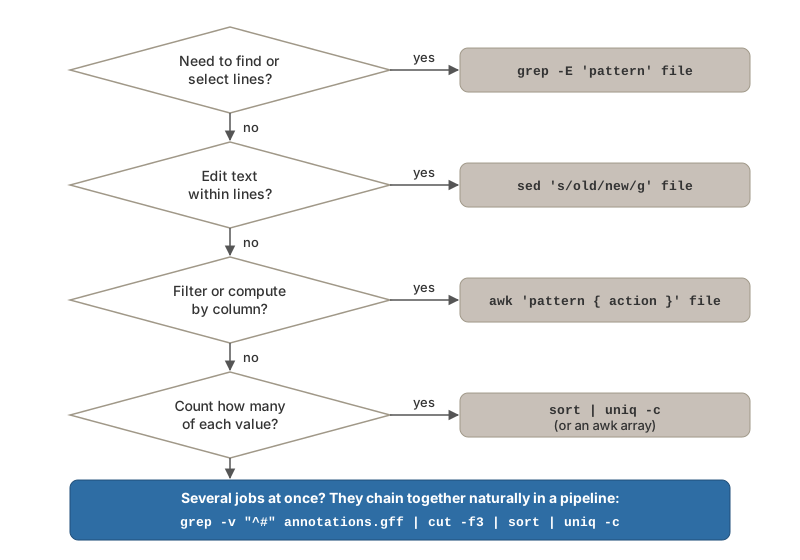
grep finds lines, sed edits text within lines, awk filters and computes on columns, and sort | uniq -c counts groups — and the tools chain together naturally in a pipeline.
Putting It Together
The real power of these tools comes from combining them with the pipeline tools of Chapter 7. Each of the following answers a question you are likely to ask of a real data file in a single line:
# How many distinct gene names are in column 1 (skipping the header)?
$ tail -n +2 data.tsv | cut -f1 | sort | uniq | wc -l

# The 20 rows with p < 0.05 (column 5) with the largest effect size (column 3)
$ awk '$5 < 0.05' results.tsv | sort -k3,3 -nr | head -20

# Convert a CSV to tab-delimited and keep three columns
$ sed 's/,/\t/g' data.csv | cut -f1,3,5 > subset.tsv

# How many times does each value in column 2 occur, most common first?
$ cut -f2 data.tsv | sort | uniq -c | sort -nr

# How many sequences per chromosome in a FASTA whose headers look like ">chr1:1000-2000"?
$ grep "^>" sequences.fasta | cut -d":" -f1 | sort | uniq -c

# Which feature types does a GFF file contain, and how many of each?
$ grep -v "^#" annotations.gff | cut -f3 | sort | uniq -c
Notice the recurring shape: select lines (grep, awk, tail -n +2), extract a column (cut), sort so that identical values are adjacent, then count (uniq -c, wc -l). Once this idiom is in your fingers, most “how many of each?” questions take seconds.
9.11 The Same Patterns in R and Python
From Lecture 05 onward, the regular-expression language you have been using with grep, sed, and awk moves inside R and Python. The patterns themselves — anchors, character classes, quantifiers, alternation — are unchanged; only the functions wrapped around them are new. The map:
| Job | Shell | R | Python (import re) |
|---|---|---|---|
| Which elements match? | grep |
grepl() (TRUE/FALSE), grep() (positions) |
re.search() |
| Pull out the match itself | grep -o |
regmatches() + gregexpr()
|
re.findall() |
| Substitute | sed 's/a/b/' |
sub() (first), gsub() (all) |
re.sub() |
| Split on a pattern | awk -F |
strsplit() |
re.split() |
One practical difference between the languages is escaping. In an R string, a backslash must itself be escaped, so the digit class \d is written "\\d". Python avoids the problem with raw strings: write every pattern with an r prefix, as in r"\d", and backslashes pass through untouched. Make the raw-string prefix a habit — a Python regex without it will eventually bite you.
R’s pattern functions
sequences <- c("ATGAAATAA", "CCCGGG", "ATGTTTTGA")

grepl("^ATG", sequences)           # which elements start with ATG?
# [1]  TRUE FALSE  TRUE
grep("^ATG", sequences)            # their positions ...
# [1] 1 3
grep("^ATG", sequences, value = TRUE)   # ... or the elements themselves
# [1] "ATGAAATAA" "ATGTTTTGA"

gsub("T", "U", sequences)          # substitute ALL matches (sub() does the first)
# [1] "AUGAAAUAA" "CCCGGG"    "AUGUUUUGA"

# Extract every match, like grep -o: regmatches() + gregexpr()
seq <- "ATGAAATAACCCATGTTTTGA"
regmatches(seq, gregexpr("ATG([ACGT]{3})*?(TAA|TAG|TGA)", seq))[[1]]
# [1] "ATGAAATAA" "ATGTTTTGA"

strsplit("convA_rep1_day3", "_")[[1]]   # split on a pattern, like awk -F
# [1] "convA" "rep1"  "day3"
The tidyverse’s stringr package (Section 14.1.1) wraps these in functions with consistent names and argument order — str_detect(), str_subset(), str_replace_all(), str_extract_all(), str_split() — and is what most modern R code uses; the base functions above are what you will meet in older code and in other people’s scripts.
Python’s re module
import re

sequences = ["ATGAAATAA", "CCCGGG", "ATGTTTTGA"]

[s for s in sequences if re.search(r"^ATG", s)]     # keep the matching elements
# ['ATGAAATAA', 'ATGTTTTGA']

re.sub(r"T", "U", "ATGAAATAA")                      # substitute all matches
# 'AUGAAAUAA'

seq = "ATGAAATAACCCATGTTTTGA"
re.findall(r"ATG(?:[ACGT]{3})*?(?:TAA|TAG|TGA)", seq)   # extract every match
# ['ATGAAATAA', 'ATGTTTTGA']

re.split(r"_", "convA_rep1_day3")                   # split on a pattern
# ['convA', 'rep1', 'day3']
Two Python details to note. First, (?: ... ) is a non-capturing group: it groups for structure, like ( ... ), but keeps re.findall() returning the whole match rather than the group’s contents. Second, for a pandas column the .str accessor runs a regex down every row at once — df["Individual"].str.contains(r"1$"), .str.replace(), .str.extract() — which is the data-frame version of grepl() on an R vector.
One pattern, three languages
The ORF-like pattern from Section 9.5.2 works everywhere; only the function changes:
This is the usual division of labor: prototype and explore a pattern with grep on the command line, where feedback is immediate, then move it into an R or Python script once it needs to feed counts, tables, or figures (the fasta_stats scripts of Lecture 05 do exactly that). The pattern syntax reference in Appendix D applies to all three.
9.12 Running Example: The Stickleback Data
This section applies the chapter to the course dataset described in Section 1.5 (80 stickleback, 4 treatment groups, 600 genes). The same steps appear on the Week 3 and 4 slides, so the book and the lecture can be read side by side.
The stickleback table is small enough to read, but the same commands scale to files with millions of lines. grep -w matches whole words, so the treatment label in the third column selects rows without also matching the combined label in the fourth; a regular expression anchored at the start of the line picks out the individuals whose number is exactly 1:
The last line is worth pausing on. Without -w, mono also matches monoA and monoB in the fourth column, but every line that contains those also contains the bare word mono in the third, so the counts agree. Small experiments like this, comparing two flags on data you understand, are how you learn what a flag really does.
sed and awk complete the picture. The fourth column is named Geno&Micro, and the ampersand will annoy every tool downstream, so the first sed command below renames it in a new file, leaving the raw data untouched (Section 8.5.4). awk then computes the mean of the first gene column over all fish, and, using an associative array keyed on the genotype, per genotype:
sed '1s/Geno&Micro/Geno_Micro/' data/Stickle_RNAseq.tsv > results/stickle_clean.tsv
awk -F'\t' 'NR > 1 { sum += $5; n++ } END { print "Gene1 mean:", sum/n }' results/stickle_clean.tsv
awk -F'\t' 'NR > 1 { sum[$2] += $5; n[$2]++ } END { for (g in sum) print g, sum[g]/n[g] }' results/stickle_clean.tsv
The mean count of the first gene is about 14 in genotype A fish and about 1.4 in genotype B, a tenfold difference visible from three lines of awk. Turning this into a reusable script is the job of Chapter 10.
9.13 Summary
This chapter covered pattern matching with grep and regular expressions, and the two companion tools that edit and compute on the text grep finds:
-
grepfinds lines matching patterns in files or streams - Basic regex uses metacharacters:
.,*,^,$,[] - Extended regex (
grep -E) adds:+,?,|,{} - Character classes match sets of characters
- Anchors match positions (start/end of line)
- Combining
grepwith pipes enables powerful analysis - Genomic data analysis uses these tools for motif searching
-
sededits text streams:s/old/new/gsubstitutes,-n 'a,bp'prints ranges,/pattern/ddeletes, and-Ewith\1rearranges captured text -
sed -iedits files in place—write to a new file until you are confident, and remember that macOS needssed -i '' -
awkworks with columns:$1 ... $NF,NR,-F',',NR > 1to skip headers,ENDblocks for sums and means, and associative arrays for per-group summaries - Rule of thumb: grep finds lines, sed edits text, awk works with columns
Regular expressions are a foundational skill. While the syntax can seem cryptic initially, investment in learning regex pays off enormously across all aspects of computational biology. Keep Appendix D at hand while you practice.
For a comprehensive reference of regular expression patterns and grep command syntax, see Appendix D. For other Unix commands, see Appendix B.
Additional Reading
To deepen your understanding of regular expressions:
- Regular-Expressions.info — A comprehensive tutorial and reference site for regex
- RegexOne — An interactive tutorial for learning regular expressions step by step
- regex101.com — An online regex tester with explanations of each component
- “Mastering Regular Expressions” by Jeffrey Friedl (Friedl, 2006) — The definitive book on regex theory and practice
For bioinformatics-specific pattern matching:
- BioStars: Regular Expressions in Bioinformatics — Community Q&A with many regex examples
- Rosalind.info — Bioinformatics problem sets that often require regex solutions
-
GNU Grep Manual — Official documentation with advanced options:
man grepor online at gnu.org
Exercises
Exercise 1: Basic Pattern Matching
Create a file with various text and practice: 1. Find all lines containing “the” (case-insensitive) 2. Find lines starting with a capital letter 3. Find lines ending with a period 4. Count empty lines
Exercise 2: Biological Patterns
Using a FASTA file: 1. Count the number of sequences 2. Extract headers for sequences longer than 1000 bp (hint: you’ll need multiple commands) 3. Find all sequences containing the pattern “TATAAA” (TATA box) 4. Count how many sequences have “chromosome” in their header
Exercise 3: Regular Expression Practice
Write grep commands to match: 1. Phone numbers in format: (555) 555-5555 2. Email addresses 3. Dates in YYYY-MM-DD format 4. DNA sequences that are exactly 20 bases long
Exercise 4: Genomic Analysis Pipeline
Download a bacterial genome and: 1. Calculate the genome size 2. Count all restriction sites for at least 3 different enzymes 3. Find the longest homopolymer run 4. Calculate GC content using only Unix tools 5. Document your pipeline in a shell script
Exercise 5: chr21 Self-Check (from the Week 4 slides)
Using the chr21.fa file from Section 9.7 and only grep -v, tr, fold, sort, uniq, and wc:
- Count the total number of bases in
chr21.fa - Calculate the GC content (percent of bases that are G or C)
- Find runs of the dinucleotide repeat
ATfive or more units long - What fraction of the chromosome is
N?
Build each pipeline one command at a time and check the output at every stage. Remember the soft-masking (Section 9.7.4): uppercase first with tr 'acgt' 'ACGT'. Hints: for (1) start from the total-bases pipeline in Section 9.7.2; for (2) and (4), tr -cd 'GCgc' and tr -cd 'Nn' keep only the listed characters, and dividing by the answer to (1) gives the fraction; for (3), grep -oE "(AT){5,}" prints each run on its own line.