6 Permissions, Wild Cards, and the Shell Environment
After completing this chapter, you will be able to:
- Match many files at once with wild cards (
*,?,[ ]) safely - Read a permission string from
ls -land change permissions withchmod - Make a script executable and run it with
./ - Use environment variables and understand how the
PATHfinds programs - Customize your shell with configuration files, and connect to remote computers with
ssh
Chapter 5 introduced the file system and the core commands for moving around it and managing files. This chapter is the second half of that story: the shell features that turn those commands into real workflows. Wild cards let one command act on many files; permissions control who can read, change, and—crucially for the scripts you are about to start writing—run a file; and environment variables, the PATH, and configuration files determine how your shell behaves every time it starts. These are exactly the pieces you need in hand before Chapter 7 chains commands into pipelines and Chapter 10 turns pipelines into programs.
6.1 Wild Cards
One of the most powerful features of Unix is wild cards—special characters that match multiple files at once. Suppose you want to remove all temporary HTML files from a project. Removing them one by one would be tedious, but with wild cards you can match them all:
The * wild card matches any number of any characters (including none). The ? wild card matches exactly one character:
# All CSV files, all files starting with "data", all text and markdown files
$ ls *.csv
$ ls data*
$ ls *.txt *.md

# Match files like file-001.html, file-002.html, file-999.html
$ ls file-???.html

# sample1.txt, sample2.txt, ... but not sample10.txt
$ ls sample?.txt

# Remove all files starting with "temp"
$ rm temp*

# Match files with any extension
$ ls data.*
Square brackets [ ] match any single character from a set or range:
Wild cards are expanded by the shell before the command runs, so they work with any command, not just ls:
Combining rm with * can be dangerous! The command rm * deletes everything in the current directory without asking for confirmation. Always use ls first to see what a wild card pattern matches before using it with rm, and consider rm -i for interactive confirmation when deleting with wild cards.
Brace Expansion
A close cousin of the wild cards is brace expansion. A comma-separated list inside { } expands into one copy of the surrounding text per alternative, and {start..end} expands a numeric or alphabetic sequence:
Unlike the wild cards above, brace expansion never looks at which files exist—the shell simply generates the strings and hands them to the command. That makes it the tool of choice for creating things rather than matching them. Braces nest, so a single mkdir -p can build an entire project directory tree (Section 5.9) in one line:
Keep the distinction straight and the two features cover complementary jobs: a wild card such as sample_*.txt selects from names already present (and matches nothing if no file fits), while sample_{1..5}.txt generates all five names whether or not the files exist. Wild cards select; braces generate.
6.2 File Permissions and Ownership
Unix is a multi-user system, and every file has permissions controlling who can read, write, or execute it. Understanding permissions is essential for security and for running scripts (Section 10.2.2).
Understanding Permission Strings
When you run ls -l, you see permission strings like:
Let’s decode -rwxr-xr-x (Table 6.1):
-rwxr-xr-x
| Position | Meaning |
|---|---|
| 1st character | Type: - (file), d (directory), l (link) |
| Characters 2-4 | Owner permissions: rwx |
| Characters 5-7 | Group permissions: r-x |
| Characters 8-10 | Others permissions: r-x |
The three permission types are:
- r (read): View file contents or list directory
- w (write): Modify file or add/remove files in directory
- x (execute): Run file as program or enter directory
- -: Permission denied for that operation
So -rwxr-xr-x means: this is a regular file; the owner can read, write, and execute it; members of the group can read and execute it; and everyone else can read and execute it.
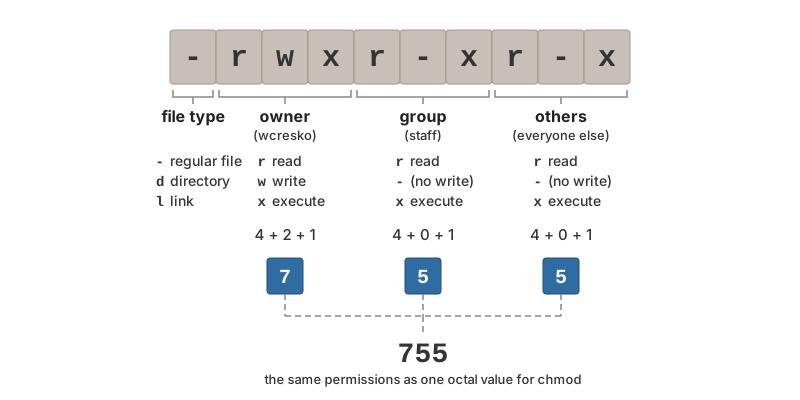
-rwxr-xr-x. The first character gives the file type; the next nine form three triplets—owner, group, and others—each flagging read, write, and execute. Summing read = 4, write = 2, and execute = 1 within each triplet gives the octal value 755.
Changing Permissions: chmod
The chmod command changes file permissions. There are two notations:
Symbolic notation uses letters for who (u user/owner, g group, o others, a all) and operators for what (+ add, - remove, = set exactly):
Octal notation assigns each permission a value—read = 4, write = 2, execute = 1—and adds them up for each of the three sets. For example, rwx = 4 + 2 + 1 = 7 and r-x = 4 + 0 + 1 = 5 (Table 6.2):
chmod
| Number | Permission |
|---|---|
| 7 | rwx (read + write + execute) |
| 6 | rw- (read + write) |
| 5 | r-x (read + execute) |
| 4 | r– (read only) |
| 0 | — (no permissions) |
A few patterns cover almost every situation: 755 for scripts (you can modify, everyone can run), 644 for data files (you can modify, everyone can read), and 700 or 600 for directories and files that only you should touch.
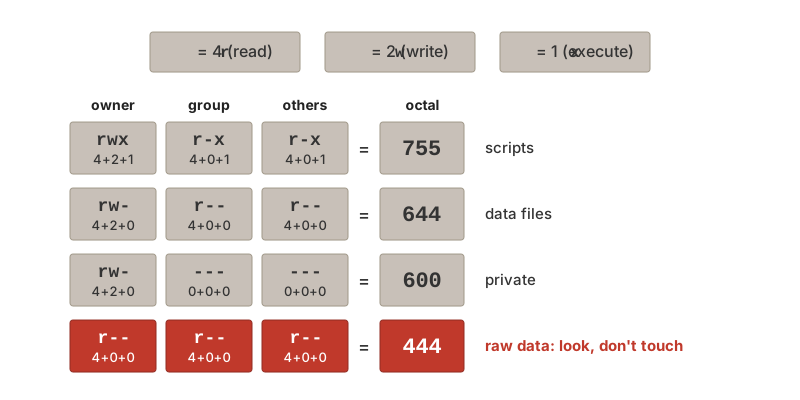
One pattern deserves to become a habit: making your raw data read-only. Raw data files should never change after they arrive (Section 5.9), and removing write permission enforces that—no script, yours or anyone else’s, can silently overwrite them:
With the raw files locked down, a mistake costs you a prompt instead of your data: rm asks before deleting a write-protected file, and output redirection (>) aimed at one refuses outright. You can always restore write permission with chmod u+w when a file genuinely must change—the point is that changing raw data should require a deliberate step.
On your laptop you are usually the only user, so the group and others triplets rarely come into play. On a shared system such as Talapas they are how a lab manages its files: your group there is your PIRG, and the group permissions decide whether labmates can read your results or write into a shared project directory. You will meet this again in Chapter 20.
Making Scripts Executable
The most common reason you will reach for chmod is to run a script you have written. A new text file is not executable, so trying to run it directly fails:
The #!/bin/bash line at the top (the “shebang”) tells Unix which program should interpret the script, and the ./ prefix says “the file in the current directory” (Section 5.4.3). You will also see the shebang written as #!/usr/bin/env bash—the form used in the lecture slides and the course’s example scripts. The two are interchangeable for this course: the env form asks Unix to find bash wherever it is installed, which makes a script more portable to systems where bash is not at /bin/bash (some macOS and cluster setups).
Two more things worth knowing from day one:
bash myscript.shworks without execute permission. In that command you are runningbash(which is already executable) and handing it the file to read, so noxbit is needed. Thechmod +xrequirement applies only to running the script directly as./myscript.sh.- Downloaded scripts always need
chmod +xonce. The execute bit is not part of the file’s contents, so it does not survive a download. The four worked example scripts on the course’s Example Files page are a good place to practice: download them, runchmod +x *.sh, then read their comments to see how real scripts are put together.
Shell scripts are the subject of Chapter 10.
Changing Ownership: chown
The chown command changes file ownership:
Superuser Access: sudo
Some operations require administrator (root) privileges. The sudo command temporarily elevates your permissions:
Use sudo carefully! With great power comes great responsibility. Commands run with sudo can modify or delete system files, potentially breaking your computer. Always double-check commands before running them with sudo.
6.3 Environment Variables
Unix has settings that affect your command-line environment called environment variables. These are distinguished by a $ prefix. Some important ones:
# Your home directory
$ echo $HOME
/home/wcresko

# Your username
$ echo $USER
wcresko

# Your current shell
$ echo $SHELL
/bin/bash

# Where Unix looks for programs
$ echo $PATH
/usr/local/bin:/usr/bin:/bin

# Your current working directory (the same thing pwd prints)
$ echo $PWD
/home/wcresko/projects

# See all environment variables (there are many; page through them)
$ env | less
$ printenv HOME
Environment variables control how your shell behaves and where it looks for programs. The PATH variable is particularly important—it’s a colon-separated list of directories where Unix searches for executable programs.
You can also define your own variables. Assign with NAME=value (no spaces around the =) and refer to the value with a $ prefix:
A variable set this way is visible only to the current shell. To make it available to the programs you launch from that shell (R, Python, a script), prefix the assignment with export:
Shell variables are the building blocks of shell scripts, which are covered in Chapter 10.
6.4 Executables and the PATH
In Unix, all programs are files—they’re called executables. When you type ls, grep, or git, Unix runs an executable file. You can find where a program lives using which:
The PATH environment variable tells Unix where to look for executables. When you type a command, Unix searches through each directory in PATH until it finds a matching program:
Unix searches these directories in order. If you have your own scripts in ~/bin, you can add that directory to your PATH to make them accessible from anywhere.
6.5 Shells and Configuration Files
The shell is the program that interprets your commands. Bash (Bourne Again Shell) is the most common, but others exist like zsh (default on modern macOS) and fish. You can see which shell you’re using:
Your shell can be customized through configuration files that run when you open a terminal (Table 6.3):
| Shell | Configuration Files |
|---|---|
| Bash | ~/.bashrc, ~/.bash_profile |
| Zsh | ~/.zshrc, ~/.zprofile |
These files can set environment variables, define aliases (shortcuts for commands), and customize your prompt. For Bash, ~/.bashrc is read by interactive shells and ~/.bash_profile by login shells; on macOS with zsh, put the same lines in ~/.zshrc. Common customizations include:
After editing a configuration file, apply the changes either by opening a new terminal or by running:
6.6 Connecting to Remote Computers: ssh and scp
One of the main reasons to learn the shell is that it works the same way on a computer across the room or across the country. The ssh command (secure shell) opens a shell on a remote machine:
Once connected, everything in this chapter—pwd, ls, cd, mkdir, and the rest—works exactly as it does locally, except that the files live on the remote system. This is how you will use UO’s Talapas cluster (Chapter 20). Type exit to close the connection.
The scp command (secure copy) copies files between your computer and a remote one. Its syntax mirrors cp, with user@host: prefixed to the remote path:
For large or repeated transfers, rsync is more efficient because it copies only what has changed; see Section 20.5.3.
6.7 Commands Worth Learning
Several other commands are worth knowing about as you advance (Table 6.4); grep gets its own treatment in Chapter 9:
| Command | Description |
|---|---|
tar |
Archive files and directories into one file |
ssh |
Connect securely to another computer (Section 6.6) |
ln |
Create symbolic links (shortcuts to files) |
nano or vim |
Edit files in the terminal |
awk |
Column-oriented text processing (covered in Section 9.10) |
sed |
Stream editor for text transformation (covered in Section 9.9) |
6.8 File Manipulation from R
You can also perform file operations from within R using functions like file.create(), file.copy(), file.rename(), and file.remove(). See ?files in R for the complete list. The unlink() function removes files and directories.
While not generally recommended, you can run Unix commands from R using the system() function:
This can be useful for integrating Unix tools into R scripts, but native R functions are usually preferable for portability.
6.9 Summary
This chapter completed your shell foundations:
- Wild cards (
*,?,[ ],{ }) are expanded by the shell before the command runs—preview withlsbefore using them withrm ls -lpermission strings decode as owner/group/others triplets ofrwxchmodchanges permissions symbolically (u+x,go-w) or in octal (755,644)- A new script needs
chmod +xonce before./script.shwill run; the shebang line says which interpreter runs it - Environment variables (
$HOME,$PATH) configure your session; thePATHis where the shell looks for programs - Shell configuration files (
.bashrc,.zshrc) make your customizations permanent sshandscpextend everything in this book to remote machines like Talapas (Chapter 20)
For a comprehensive reference of Unix commands with syntax and examples, see Appendix B.
Exercises
Exercise 1: Wild Cards and Structure
- Make five directories called
dir_1throughdir_5with a singlemkdircommand - Inside each, create
file_1.txt,file_2.txt, andfile_3.txtusingtouch - Open
dir_1/file_1.txtinnano, type a few words, save, and print it withcat - Use a wild card to list every
file_2.txtacross all five directories in one command - Delete all files in
dir_3with a singlermcommand (check withlsfirst), then removedir_3withrmdir
Exercise 2: File Permissions
- Create a short script that prints “Hello, World!” and the current date (
date) - Try to run it with
./—what error do you get? - Make it executable with
chmod +xand run it again - Examine the permissions of several files with
ls -land decode each permission string - Practice changing permissions with both symbolic (
chmod u+x) and octal (chmod 755) notation, checking the result withls -leach time
Exercise 3: Your Environment
- Print your
$HOME,$USER, and$SHELLvariables - Print your
$PATHand count how many directories it contains (hint:tr ':' '\n' | wc -l) - Use
whichto find wherels,bash, andpython3live - Create an alias for
ls -lhin your shell configuration file, reload it withsource, and test it