Lecture 02
Unix Navigation, Files, Pipes and Shell Scripts
Bill Cresko
2026-10-05
Book reading for this lecture
- Ch. 6: Permissions, Wild Cards, and the Shell Environment
- Ch. 7: Files, Pipes, and Redirection
- Review: Ch. 5: Unix Fundamentals
- Reference: App. B: Unix Command Reference
- Looking ahead to next week: Ch. 8: Tidy Data Principles
Goals for today
- Navigating the file system
- Making, reading and writing files
- Redirection and Unix pipes
- Your first shell scripts - and the file permissions (
chmod) that let them run - Meet the course dataset (stickleback gut RNA-seq)
Recap from last time
- Unix is the family of operating systems (macOS, Linux, WSL) that share one command-line toolkit
- A shell (bash, zsh) reads a command, runs it, and prints the result:
command -options arguments - Use the shell because it is scriptable, repeatable, and works the same on your laptop and on Talapas
- Help:
man cmd,cmd --help,tldr cmd, and the book’s Unix Command Reference
Five minute warmup in the shell
Open the terminal (in Positron or standalone) and type each line yourself:
whoami                  # who does the computer think you are?
pwd                     # where are you?
ls                      # what is here?
ls -lh                  # ...with sizes and dates
echo "hello world"      # your first command with an argument
man ls                  # read a manual page; press q to quit
mkdir -p ~/projects     # make a home for your course work
cd ~/projects && pwd # go there and confirm- Use Tab for every path and ↑ to repeat commands - build the habit now
Our course dataset: stickleback gut RNA-seq
Stickle_RNAseq.tsv- RNA-seq read counts for 600 genes in the guts of 80 threespine stickleback from the Cresko Lab- Two host genotypes (A, B) x two microbiota treatments (conventional, mono) = four groups of 20 fish
- Plain text, tab-separated: one row per fish; columns
Individual,Genotype,Microbiota,Geno&Micro, andGene1-Gene600 - We will use it all term: count its rows at the shell today, search it with
grep(L03), read it into R and Python (L05-06), plot it (L06), and run it on Talapas (L08)
Download it once into your course folder:
The file system and paths
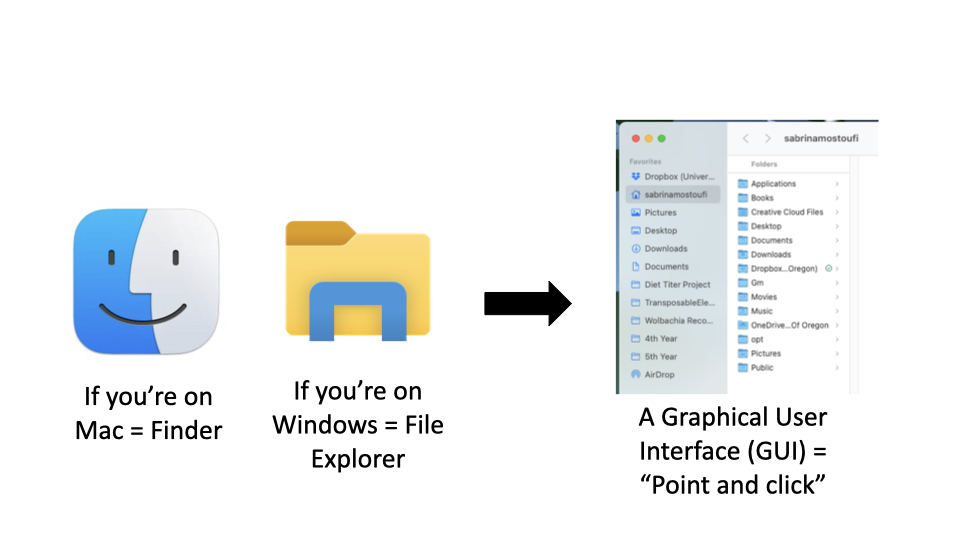
The way you normally navigate
How is a computer organized?
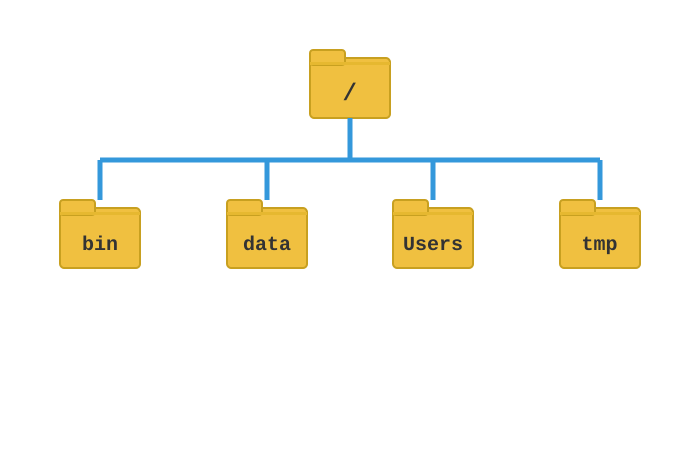
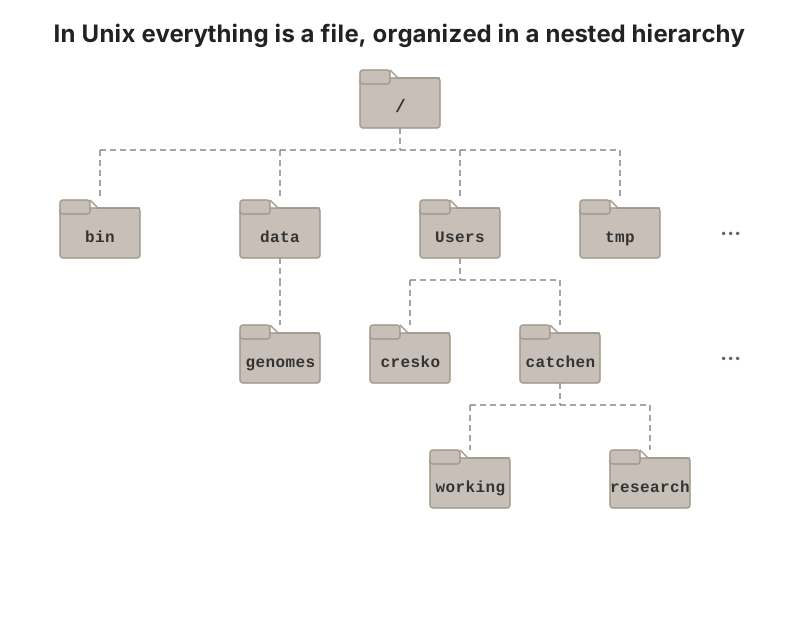
- System of directories (folders) and files
- / = the root directory, which holds all other directories
- Most of your files will be located under /Users in a directory of your username
- the
~is shorthand for your home folder - Navigation in the shell consists of jumping up and down between directories
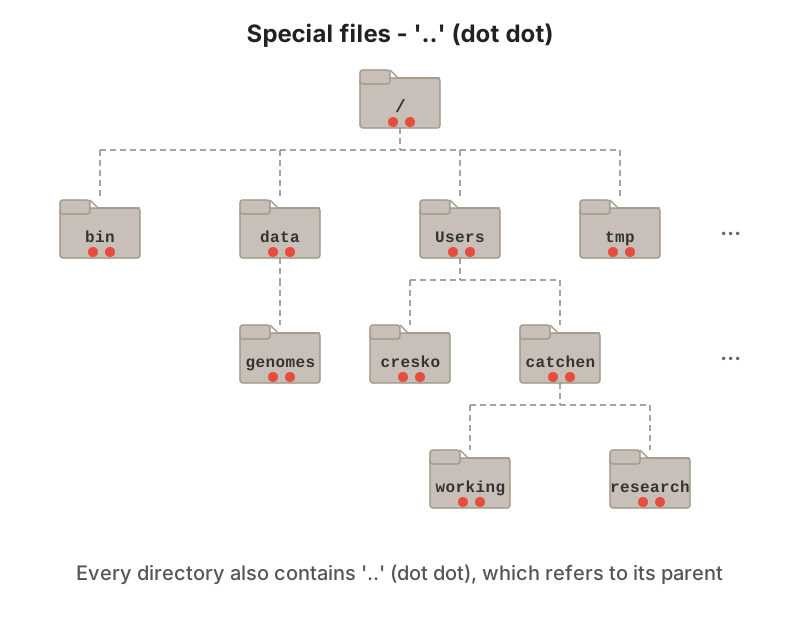
The Unix file hierarchy
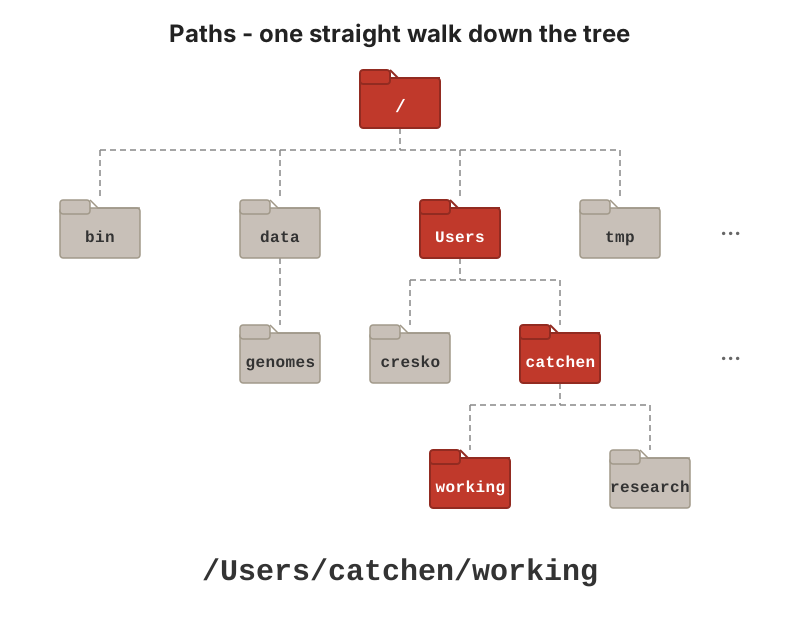
Paths - the address of a file in the tree
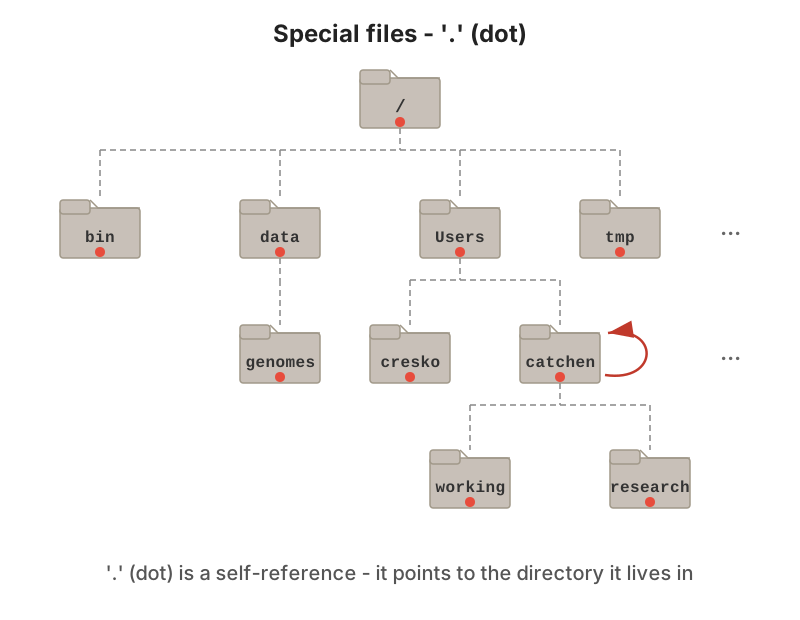
Special files - . refers to the directory you are in
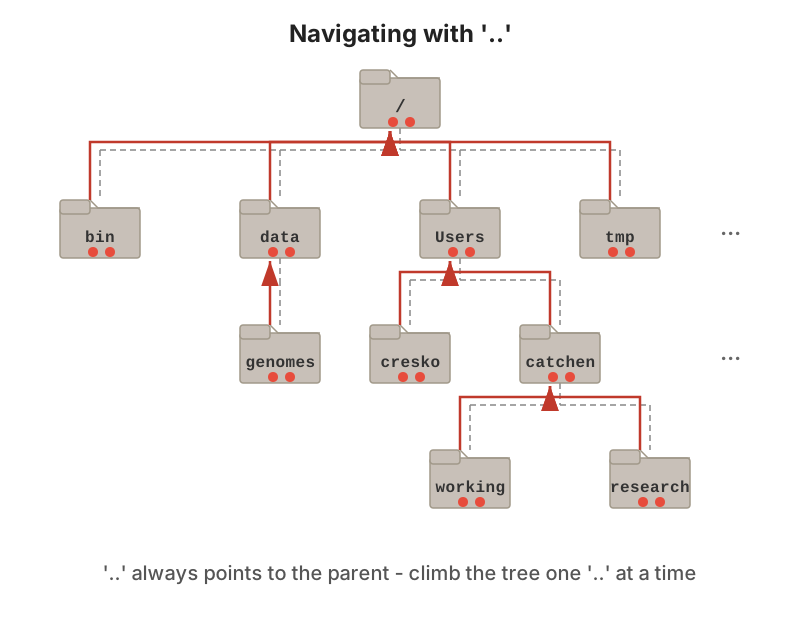
.. refers to the parent directory
Navigating with ..
Relative vs. absolute paths
- Absolute path: the full path from the root
/(e.g.,/Users/wcresko/Documents) - works from anywhere - Relative path: the path from where you are right now (e.g.,
../Documents) - portable, but depends on your current directory .refers to the current directory..refers to the parent directory~refers to your home directory
Common navigation commands
pwd= “print working directory”: where am I right now?ls= “list” all directories and files in your current positionls -F= mark which results are directories, files, etc.ls -l= “long format”: permissions, owner, sizes, datesls -S= sort by size;ls -t= sort by time, newest first; add-rto reverse either order
cd= “change directory”: move to a new position based on your path argumentcd ..= go up one directorycd ~= go to my home directorycd -= go back to the directory you were in last (like a browser’s back arrow)
Working with files
Making new files
- Make new folders:
mkdir - Make new files:
nano,touch - Rename files:
mv - Move files:
mv - Copy files:
cp - Delete files:
rm - Delete directories:
rmdir - Examining file length:
wc - (Reading what’s inside a file -
cat,less,head,tail- gets its own section shortly)
Editing a file in the terminal: nano
- Type normally; arrow keys move the cursor - no mouse here
- The
^shortcuts along the bottom mean Ctrl:Ctrl-O, then Enter = save (“write Out”)Ctrl-X= exit (it offers to save if you forgot)Ctrl-Kcuts a whole line;Ctrl-Upastes it back
- Prefer a familiar window?
- Positron edits the same files
- but
nanois what you’ll have on Talapas (L08), where there is no point-and-click
Things to keep in mind
- The shell trusts you
- It will delete files you say to delete
- It will override files if you name 2 things the same
- Naming conventions
- Avoid spaces
- Don’t start with a -
- Stick to letters, numbers, . , -, and _
- Use appropriate file extensions in file names
- Some software expect files with certain extensions (.fasta, .txt, etc.)
Useful flags for file commands
| Command | Effect |
|---|---|
ls -l |
Long listing: permissions, owner, size, date |
ls -a |
Show hidden “dot” files (names starting with .) |
ls -lh |
Human-readable sizes (K, M, G) |
ls -lt |
Sort by modification time, newest first |
cp -r src/ dst/ |
Copy a directory and everything in it |
rm -i file |
Ask before deleting each file |
rm -r dir/ |
Delete a directory and all its contents - no undo! |
mkdir -p a/b/c |
Make nested directories in one step |
Warning
- The shell has no Trash.
- Double-check the path before
rm -r - Never combine it with a wildcard (
rm -r *) without thinking twice.
Wildcards
Wildcards - one command, many files
touch sample_01.fastq sample_02.fastq sample_03.fastq control.fastq notes.md

ls *.fastq              # everything ending in .fastq
ls sample_*.fastq       # the three sample_ files
ls sample_0?.fastq      # ? matches exactly one character
ls sample_0[12].fastq   # only sample_01 and sample_02
ls *.{fastq,md} # brace expansion: .fastq OR .md| Pattern | Matches |
|---|---|
* |
Any string of characters (including none) |
? |
Exactly one character |
[abc] |
Any one character in the set |
[a-z] |
Any one character in the range |
{foo,bar} |
Either foo or bar (brace expansion) |
Tip
- The shell expands wildcards before the command runs - so
rm *.fastqdeletes every matching file at once. - Run
ls *.fastqfirst to see exactly what will be affected. - More in the Unix Fundamentals chapter of the course book.
Reading Files in Unix
Commands for Reading Files
cat= concatenate and display files- Shows entire file at once
- Good for small files
less= view file page by page- Navigate with space (forward), b (back), q (quit)
- Search with /pattern
more= similar to less but simpler- Space to go forward, q to quit
head= display first 10 lines (default)head -n 20 file.txtshows first 20 lines
tail= display last 10 lines (default)tail -n 20 file.txtshows last 20 linestail -f file.txtfollows file as it grows (useful for logs)
Input Redirection
<= redirect input from a filecommand < input.txt- Sends contents of file as input to command
<<= here document (multi-line input)- Allows you to provide multi-line input directly in the terminal
- Example uses:
wc -l < data.txtcounts lines in data.txtsort < names.txtsorts contents of names.txt- Many commands can read from files directly OR from
stdin
Writing Files in Unix
Output Redirection
>= redirect output to a file (overwrites)ls -l > filelist.txt- Creates new file or overwrites existing
>>= append output to a fileecho "new line" >> existing.txt- Adds to the end of existing file
2>= redirect error messagescommand 2> errors.txt- Captures error messages separately
&>= redirect both output and errorscommand &> all_output.txt
Unix Pipes
What are Pipes?
|= the pipe operator- Takes output from one command as input to another
- Chains commands together
- No intermediate files needed!
- Basic syntax:
command1 | command2 | command3
- Power of Unix philosophy:
- Small tools that do one thing well
- Combine them to do complex tasks
Pipes, visually
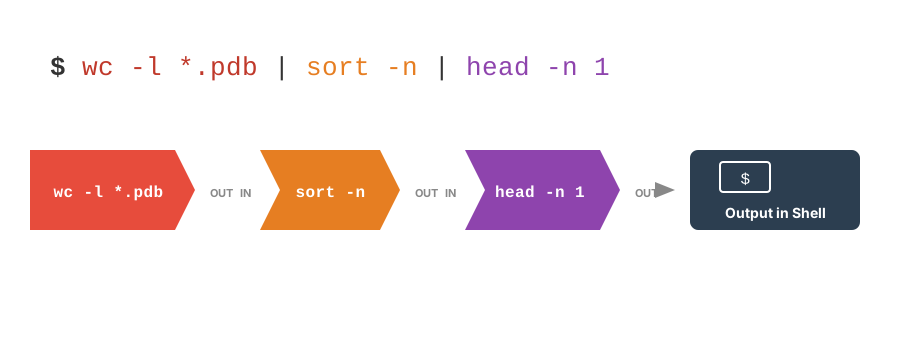
Each command’s output becomes the next command’s input
Common Pipe Patterns
- Counting patterns:
grep "pattern" file.txt | wc -l- Count lines matching a pattern
- Sorting and uniqueness:
cat file.txt | sort | uniq- Sort lines and remove duplicates
- Finding top/bottom items:
sort data.txt | head -5- Get top 5 after sorting
- Filtering and processing:
ls -l | sort -k5,5n | tail -3- The three biggest files in a folder (column 5 of
ls -lis the size)
Note
- A few of these examples preview commands we haven’t covered yet:
grepsearches for text patterns (all of L03)cutpicks columns (you’ll use it on the course data in a few slides). - Focus on the shape of the pipelines today - the pieces get their own lectures.
Advanced Pipe Examples
- Multi-step data processing:
cat data.csv | cut -d',' -f2 | sort | uniq -c | sort -rn- Extract column 2, count unique values, sort by frequency
- Real-time monitoring:
tail -f logfile.txt | grep ERROR- Watch log file for errors in real-time
- Complex transformations:
wc -l *.txt | sort -n- Line counts for every txt file, smallest first (
find+xargsdo this across whole directory trees - L04)
Example Workflow
Note
The backslash allows you to continue commands on multiple lines for readability
Tips for Working with Files and Pipes
- Test pipes step by step
- Build complex pipes incrementally
- Check output at each stage
- Use
lessfor large files instead ofcat - Remember:
>overwrites,>>appends - Pipe efficiency:
- Filter early in the pipeline
- Reduces data passed between commands
- Save intermediate results when debugging complex pipes
Practice Exercise: Files and Pipes
- Create a file with a list of numbers (one per line)
- Use pipes to sort them numerically
- Save the sorted list to a new file using redirection
- Use
teeto display and save the top 5 numbers - Count how many unique numbers you have using pipes
- Append the count to your results file
Shell scripts - saving commands to reuse
From commands to scripts
- A shell script is just a plain-text file of the commands you would have typed into the prompt on a terminal, run top to bottom
- Anything you can type at the prompt - navigation, redirection, whole pipelines - can live in a script
- Why bother?
- Reproducibility - an exact, re-runnable record of what you did (your lab notebook for data)
- Automation - rerun the whole thing with one command when new data arrive
- Sharing - hand a collaborator the script, not a list of instructions
- Convention for shell scripts: name them with
.shand keep them in your project’sscripts/folder
Your first shell script
Put these two lines in a file called hello.sh (using nano, Positron, or even cat >):
- Line 1 is the shebang:
#!tells Unix which program should interpret the rest of the file - here, bash - Every other line starting with
#is a comment - write lots of them - Now run it:
- Denied!
- To understand why, we need to look at file permissions
File permissions - what ls -l is telling you
- That first column is ten characters
- A file-type flag, then three triplets of
rwx:
| Characters | Who | Meaning | |
|---|---|---|---|
- |
1 | file type | - file, d directory, l link |
rw- |
2-4 | user (owner) | owner can read and write |
r-- |
5-7 | group | group members can read |
r-- |
8-10 | other | everyone else can read |
r= read,w= write,x= execute- The
xis permission to run the file as a program - New files get
rw-but neverx- that is why./hello.shwas denied - On a directory,
xmeans “maycdinto it”
Changing permissions with chmod
chmod(change mode) adds or removes permissions- who (
u/g/o/a) +/- which (r/w/x)
More examples of the same pattern:
Tip
- The habit to build today: every time you write or download a script, it needs
chmod +xonce before./script.shwill work. - Note that
bash script.shworks withoutx, because there you are runningbash, not the script.
chmod by the numbers
- You will often see permissions as three digits
- Each digit is one triplet, adding
r=4,w=2,x=1:
| Number | Triplets | Meaning | Typical use |
|---|---|---|---|
755 |
rwxr-xr-x |
you do everything; others read + run | scripts |
644 |
rw-r--r-- |
you read + write; others read | data, documents |
600 |
rw------- |
only you, at all | sensitive files |
444 |
r--r--r-- |
read-only for everyone | raw data |
- Both styles are everywhere; read
755out loud as its triplets until it feels natural - You will meet permissions again on Talapas (L08), where your group controls who in the lab sees shared files
Five scripts to take home
- Written for this course
- Download from the Schedule (week 2) or Example Files page
- Read the comments, make them yours:
| Script | What it does |
|---|---|
file_inventory.sh |
Reports every file in a folder - grouped by file type, largest total first, with each file’s permissions and size - written out to a report file |
make_project.sh |
Builds the Lecture 01 project structure (data/raw, scripts/, output/, docs/) with template README.md, .R, .py and .qmd files |
backup_project.sh |
Snapshots a project into a dated .tar.gz (skipping expendable output/) |
filter_rows.sh + total_counts.sh |
A two-script pipeline for the course dataset: the output of one is the input of the other |
Scripts that feed each other
Because both pipeline scripts read stdin and write stdout, they chain with | exactly like built-in commands:
filter_rows.shkeeps the header + the rows you ask for →total_counts.shsums the 600 gene columns per fish- Then the built-ins take over:
sortranks,headtrims - your scripts are now part of the Unix toolkit - This is the design to copy: small tools, plain text in and out, joined by pipes
- Everything in today’s lecture - paths, redirection, pipes, permissions - in five short files
Running example: the stickleback RNA-seq table
First look at a real data file
You downloaded it at the start of class - now use what you learned today:
cd ~/projects/comptools

ls -lh data/                      # how big is it?
wc -l data/Stickle_RNAseq.tsv      # how many lines (fish + header)?
head -n 3 data/Stickle_RNAseq.tsv | cut -f 1-6     # first rows, first 6 columns only
cut -f 2 data/Stickle_RNAseq.tsv | sort | uniq -c  # how many fish per genotype?
cut -f 3 data/Stickle_RNAseq.tsv | sort | uniq -c  # ...and per microbiota treatment
head -n 1 data/Stickle_RNAseq.tsv | tr '\t' '\n' | wc -l   # how many columns?
Tip
cut -fpicks columns from a tab-separated filesort | uniq -ccounts categoriestr '\t' '\n'turns one wide header line into one name per line sowc -lcan count them- Every one of these is a one-word answer to a question about the data - no spreadsheet needed.
Before next week
- Today: paths and navigation, making and editing files, redirection, pipes - and your first shell scripts with
chmod +x - Grab the five scripts from the Schedule (week 2) and run them on your own folders
- Work through the exercises
- Next week (L03): is our dataset tidy? Tidy data principles, then
grepand regular expressions for searching files - Read: Ch. 7, Ch. 8 and Ch. 9; keep App. B open while you practice
BioE Computational Tools 2026 - Knight Campus