Lec01 - Course Introduction, Setup and Computer Systems
2026-09-28
Book reading for this lecture
The course book goes deeper on everything in this lecture. Read before or after class:
- Ch. 3: Computing Resources at the University of Oregon
- Ch. 4: Computer Systems Architecture
- Ch. 5: Unix Fundamentals
- Review: Ch. 1 and Ch. 2 from the bootcamp
- Reference: App. A: Keyboard Shortcuts, App. B: Unix Command Reference
Goals of the course
- This is a practical course and we will learn by doing
- Teach fundamental skills for your scientific careers
- Provide you with the computational tools necessary to carry out your work
- To prepare you for more advanced statistics and programming education

Class Introductions
- Your name
- Year in grad school
- Home lab or rotation lab
- What has your experience with programming/statistics been like?
What will you learn?
- What is local, cluster and cloud computing
- Unix paths, commands and scripts
- Read and write basic scripts in R and Python
- Implement reproducible research practices
- Markdown and LaTeX
- GitHub and GitHub Pages
- Talapas and Amazon Web Services (AWS)
Class Logistics
- Meet Mondays from 4:00pm - 5:00pm in KC2 213 (Sept 28 - Nov 30)
- Kick-off bootcamp: Thursday, Sept 24, 9:00am - 1:00pm in the KC2 Seminar Room
- Weekly exercises to help you learn the skills
- Two problem sets, each assigned two weeks before it is due (Mondays, via Canvas) - 60% of grade
- Term project: process a large dataset on Talapas and write it up as a reproducible Quarto document - 40% of grade
Required Materials
- No textbooks or purchases required
- Access to a laptop or computer running Windows, MacOS, or Linux operating systems
- An account on Talapas (through your lab, or through CBDS)
- Announcements and assignments posted on Canvas
- The majority of course material on our class website
https://wcresko.github.io/BioE_Comp_Tools_Fa2026/
Your Beginning Toolkit
Book: Ch. 1, setup for your operating system and Ch. 2, Your Computational Toolkit
Your beginning toolkit - Mac and Linux Shell
Mac users: open the “Terminal” app, or use another app like ‘iTerm2’
Linux users: open one of several “Terminal” apps
Mac vs. Linux vs. Windows
- macOS and Linux are Unix systems - the shell is already built in
- Windows gets the same shell through WSL with Ubuntu (installed at the bootcamp; next slides)
- Everything else - R, Python, Positron, Quarto, Git - runs on all three
Your beginning toolkit - Windows Shell
- Windows users:
- Guide:
https://learn.microsoft.com/windows/wsl/install - Run Windows PowerShell as administrator
- Install WSL2 and Ubuntu by typing
wsl --install(Ubuntu is the default distribution)
- Install WSL2 and Ubuntu by typing
- Restart your computer
- If Ubuntu does not appear in the Start menu afterwards, type
wsl --install -d Ubuntuin PowerShell (or install Ubuntu from the Microsoft Store)
- Guide:
- Open
Ubuntuand set up a username and password- Does not have to match your login info for Windows; nothing appears while you type the password, which is normal
- Note that this is the
UbuntuLinux operating system that you installed, not Windows PowerShell - Run
sudo apt updatethensudo apt upgradeto ensure everything is up to date - Create your course folders and files within your Ubuntu home directory (
~) - You can also reach your Windows files and folders from Ubuntu using
cd /mnt/c
Your beginning toolkit - IDE R and Python
- Positron (https://positron.posit.co/download) - the one IDE we all use in class
- Built on the same open-source core as VS Code, so the editor, shortcuts, and extensions carry over if you use VS Code elsewhere
- R and Python support built in, and it bundles Quarto - nothing extra to install
- Its terminal panel (Ctrl-`) is where all of our shell work happens
- R (https://www.r-project.org) and
- Python 3 (https://www.python.org/downloads) - the two languages we script in
Coding and Scripting
Why do we need coding and scripting?
- It is incredibly fast and powerful, particularly for repeated actions
- It allows you to do thousands of ‘clicks’ with single commands
- Ability to analyze large datasets that Excel and other GUIs can’t handle well
- Access to thousands of free programs made for and by scientists
- The commands work almost identically across platforms
- Ability to use computer clusters like Talapas
What is the difference between coding and scripting?
codinggenerally involves computer languages that usecompilers- C++, Fortran, Basic, etc
scriptinggenerally involves computer languages that areinterpretedon the fly- Unix, Python, R, Julia, etc.
- coding - faster but less flexible; scripting - flexible but slower
- The distinction between the two has become somewhat fuzzy and most modern analytical pipelines contain a combination of both
Programming languages are languages
- Learning to program is like learning a new spoken language - vocabulary, grammar, and lots of practice
- Learning one language makes the next one much easier (the ideas transfer: variables, loops, functions, files)
- Use it or lose it! Regular practice is the only way to keep the skill
Remember
Computers are literal. You must use explicit, pre-defined phrases to tell your computer exactly what you want - it will do what you said, not what you meant.
Computer Systems
What is a Computer System?
- Hardware: Physical components
- Software: Programs and instructions
- Firmware: Low-level software in hardware
- Data: Information being processed

Bits, bytes, and the units of data
A bit is a 0 or 1; a byte is 8 bits, about one character of text.
| Unit | Size | Holds, roughly |
|---|---|---|
| Megabyte (MB) | ~1,000 KB | a photo; the E. coli genome as text (4.6 million bases) |
| Gigabyte (GB) | ~1,000 MB | an RNA-seq FASTQ file; the human genome as text is ~3 GB |
| Terabyte (TB) | ~1,000 GB | a laptop’s disk; a high-content imaging screen |
| Petabyte (PB) | ~1,000 TB | Talapas’s shared storage (~3 PB) |
- Numbers occupy fixed slots in memory: an integer ~4 bytes, a decimal (double) 8 bytes
- A 600-gene x 80-sample count table = 48,000 numbers = under half a megabyte - trivial anywhere
- A single-cell matrix (20,000 genes x 100,000 cells) = ~16 GB dense - more than your laptop’s RAM
- Details and the KB-vs-KiB story: Ch. 4
The Fetch-Decode-Execute Cycle

- Fetch: Retrieve instruction from memory
- Decode: Interpret what the instruction means
- Execute: Perform the operation
- Store: Save results to memory or register
Hardware Components
Book: Ch. 4, CPUs and GPUs
Central Processing Unit (CPU)
Core Components
- Control Unit (CU): Directs operations
- Arithmetic Logic Unit (ALU): Performs calculations
- Registers: Ultra-fast temporary storage
- Cache: High-speed memory buffer
Key Concepts
- Clock Speed: Cycles per second (GHz)
- Cores: Independent processing units
- Threads: Virtual cores for parallel processing
- Instruction Set: CPU’s language (x86, ARM)
Graphics Processing Unit (GPU)
Core Components
- Streaming Multiprocessors (SMs): Processing clusters
- CUDA Cores/Stream Processors: Parallel compute units
- Video Memory (VRAM): Dedicated high-bandwidth memory
- Memory Controller: Manages data flow to/from VRAM
Key Concepts
- Parallel Architecture: Thousands of cores for simultaneous tasks
- Memory Bandwidth: Data throughput (GB/s)
- Compute Units: Groups of processing cores
- APIs: Programming interfaces (CUDA, OpenCL, Vulkan)
CPU vs GPU Comparison
CPU Characteristics
- Design Focus: Sequential processing & complex tasks
- Core Count: 4-64 powerful cores
- Architecture: Optimized for single-thread performance
- Memory: Large cache, lower bandwidth
- Best For:
- Operating systems & general computing
- Complex branching logic
- Low-latency operations
- Serial tasks
GPU Characteristics
- Design Focus: Parallel processing & high throughput
- Core Count: Thousands of smaller cores
- Architecture: Optimized for massive parallelism
- Memory: Smaller cache, higher bandwidth
- Best For:
- Graphics rendering
- Machine learning/AI
- Scientific simulations
- Parallel computations
Random Access Memory (RAM)
Types of RAM
DRAM (Dynamic RAM)
- Main system memory
- Needs constant refresh
- Cheaper, higher density
- DDR4, DDR5 standards
SRAM (Static RAM)
- Used in CPU cache
- No refresh needed
- Faster but expensive
- Lower density
Key Characteristics
- Volatile: Data lost when power off
- Random Access: Any location equally fast
- Bandwidth: Data transfer rate
- Latency: Access delay
- Dual Channel: Parallel data paths
Persistent Storage Systems
Hard Disk Drives (HDD)
- Mechanical spinning platters
- Magnetic storage
- Large capacity, low cost
- ~100-200 MB/s throughput
- Higher latency (~10ms)
Solid State Drives (SSD)
- No moving parts (NAND Flash)
- Electronic storage
- Faster access (~0.1ms)
- 500-7000 MB/s throughput
- More expensive per GB
The memory hierarchy - and the usual bottleneck
- Registers → cache → RAM → SSD → HDD: each level is bigger, cheaper, and slower
- RAM answers in ~100 nanoseconds and a disk in milliseconds - six orders of magnitude apart
- For data analysis the binding constraint is almost always RAM
- Your data must fit in memory while you work on it
Rule of thumb
- Plan on RAM being 3-5x your data’s size on disk
- files expand when parsed, and analysis steps make copies.
- A 1 GB CSV is comfortable on a 16 GB laptop
- A 10 GB one is a job for Talapas (Lecture 08).
Input/Output (I/O) Systems
Input Devices
- Keyboard & Mouse
- Touchscreen
- Microphone
- Camera
- Sensors
- Network Interface
Output Devices
- Monitor/Display
- Printer
- Speakers
- Network Interface
- Actuators
Operating Systems
Book: Ch. 4, operating systems
What is an Operating System?
An OS is system software that manages computer hardware, software resources, and provides common services for computer programs.
Key Roles
- Resource Manager
- Extended Machine
- User Interface Provider
- Security Enforcer
Common Operating Systems
- Desktop: Windows, macOS, Unix, Linux
- Mobile: Android, iOS
- Server: Unix, Linux, Windows Server
- Specialized: Supercomputers, IoT
Operating System Architecture

Core OS Functions
1. Process Management
- Process Creation & Termination
- Process Scheduling: CPU time allocation
- Inter-Process Communication (IPC)
- Synchronization
- Deadlock Handling
3. File System Management
- File Operations: Create, read, write, delete
- Directory Structure
- Access Control & Permissions
- File Allocation Methods
- Disk Space Management
2. Memory Management
- Memory Allocation/Deallocation
- Virtual Memory
- Paging & Segmentation
- Memory Protection
- Swap Space Management
4. Device Management
- Device Drivers: Hardware abstraction
- I/O Scheduling
- Buffering & Caching
- Interrupt Handling
- Plug and Play Support
CPU Scheduling
Scheduling Algorithms
- First-Come-First-Served (FCFS)
- Simple but can cause long waits
- Shortest Job First (SJF)
- Optimal average wait time
- Round Robin (RR)
- Fair time slices for all
- Priority Scheduling
- Important tasks first
Performance Metrics
- CPU Utilization: Keep CPU busy
- Throughput: Jobs completed/time
- Turnaround Time: Total completion time
- Waiting Time: Time in ready queue
- Response Time: First response delay
Security & Protection
Protection Mechanisms
- Access Control Lists (ACLs)
- User/Group Permissions
- Memory Protection: Segmentation
- CPU Modes: User vs Kernel
- Sandboxing: Isolate processes
Security Features
- Authentication: User verification
- Encryption: Data protection
- Firewall: Network protection
- Antivirus: Malware detection
- Updates: Patch vulnerabilities
“Every program and user should operate using the least amount of privilege necessary”
Local vs. Cluster vs. Cloud Computing

Key Drivers of Change
- Performance Needs: Growing computational demands
- Economics: Cost optimization and economies of scale
- Connectivity: Internet bandwidth improvements
- Virtualization: Hardware abstraction technologies
Local Computing Overview
Note
Computing resources that are physically present and directly controlled by the user or organization
Characteristics
Common Setups
- Desktop workstations
- Laptop computers
- On-premises servers
- Local development machines
Local Computing Architecture

Cluster Computing Overview
A collection of interconnected computers working together as a single system

Key Components
- Head Node: Job scheduling and management
- Compute Nodes: Worker machines
- Interconnect: High-speed network (InfiniBand, 10GbE+)
- Shared Storage: Parallel file systems (Lustre, GPFS)
Resource Managers
These are used to schedule computing jobs on computer clusters.
| System | Use Case | Key Features |
|---|---|---|
| SLURM | HPC | Advanced scheduling, power management |
| PBS/Torque | Traditional HPC | Mature, stable, wide support |
| SGE/UGE | Mixed workloads | Flexible policies |
| Kubernetes | Containers | Microservices, auto-scaling |
Important
We use SLURM on Talapas at the University of Oregon for scheduling compute jobs
Your laptop vs. Talapas - by the numbers
| Typical laptop | One standard Talapas node | Talapas large-memory node | All of Talapas | |
|---|---|---|---|---|
| CPU cores | 8 - 12 | 128 | varies | 14,500+ |
| RAM | 8 - 16 GB | 512 GB | up to 4 TB | ~129 TB |
| GPUs | integrated | - | - | 89 (NVIDIA A100, H100, V100) |
| Storage | 0.5 - 1 TB SSD | shared | shared | ~3 PB (3,000 TB) |
- One standard node has roughly 30x the RAM and 10x the cores of your laptop - and Talapas has hundreds of nodes
- Your storage on Talapas: 250 GB in your home directory, plus your lab’s project space (2 TB by default)
- When an analysis says “out of memory” or would take days on your laptop - that’s a job for Talapas (Lecture 08)
Cluster Computing: Pros and Cons
Advantages ✓
- Scalability: Add nodes as needed
- Performance: Parallel processing power
- Cost-Effective: Commodity hardware
- Fault Tolerance: Node redundancy
- Resource Sharing: Multiple users/projects
- Specialized Hardware: GPUs, high-mem nodes
Disadvantages ✗
- Complexity: Requires expertise
- Infrastructure: Space, power, cooling
- Network Dependency: Interconnect bottlenecks
- Software Licenses: Per-node costs
- Maintenance: Hardware failures
- Initial Setup: Complex configuration
Cloud Computing Overview
On-demand delivery of computing resources over the internet with pay-as-you-go pricing

Major Providers
- Amazon Web Services (AWS): Market leader, 200+ services
- Microsoft Azure: Enterprise integration
- Google Cloud Platform: AI/ML focus
- Others: IBM Cloud, Oracle Cloud, Alibaba Cloud
Cloud Computing: Pros and Cons
Advantages ✓
- Elastic Scaling: Instant resource adjustment
- Pay-per-Use: No idle resource costs
- Global Reach: Multiple regions
- Managed Services: Reduced operations
- Innovation Speed: Latest technologies
- Disaster Recovery: Built-in redundancy
- No CAPEX: Operating expense model
Disadvantages ✗
- Ongoing Costs: Can exceed on-prem
- Vendor Lock-in: Proprietary services
- Internet Dependency: Connectivity required
- Data Transfer Costs: Egress fees
- Compliance Complexity: Data residency
- Less Control: Shared responsibility
- Performance Variability: Noisy neighbors
Computational Tools - The Command Line
Book: Ch. 5, Unix Fundamentals · App. B, Unix Command Reference
What is Unix?
- An operating system developed at Bell Labs in 1969, released in 1973
- Now a family of operating systems: Linux, macOS, and others share the Unix design
- Runs both locally on your computer and on large clusters like Talapas
- Its shell gives you a scripting language for talking to the operating system
- Linux is an open-source operating system built on the same design
What is a shell?
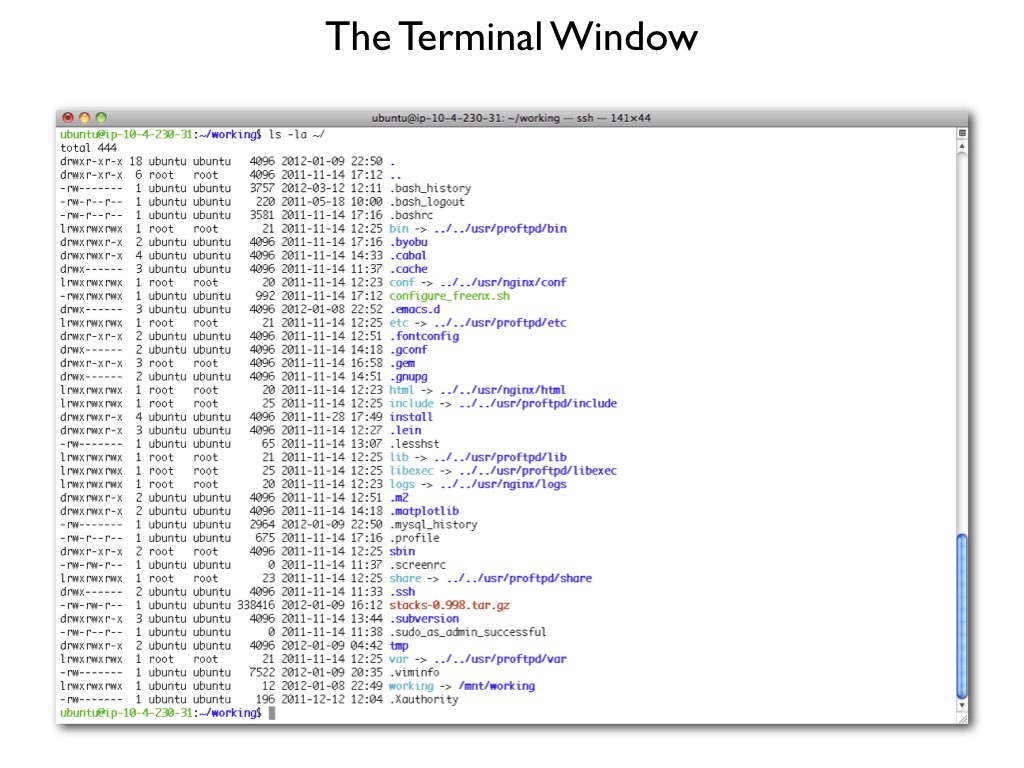
The ‘shell’ is a program that runs UNIX and takes in commands and gives them to the operating system
bash(Linux, WSL, Talapas) andzsh(macOS default) are the common shells - nearly identical for our purposesYou can access the shell via a
terminal windowthat is either stand alone or part of an IDE like Positron.
Why use the shell?
- Speed
- Can handle extremely large file sizes
- Use programs only available via shell
- The commands work almost identically across platforms
- You can even use them on a large computer cluster like Talapas and AWS
- It is incredibly powerful particularly for repeated actions
- It allows you to do thousands of ‘clicks’ with single commands
Recipes for a shell command
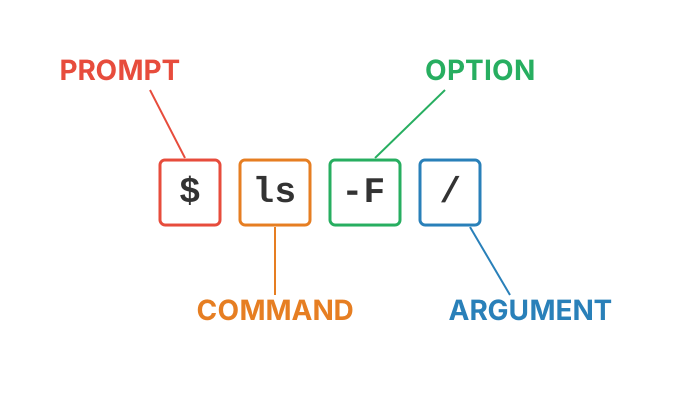
- Prompt: notation used to indicate your computer is ready to accept a new command
- Command: the building blocks of programming, tell computer to do a specific task
- Options: change the behavior of a command
- Argument: what the command should operate on
Five keys that make the shell livable
| Key | What it does |
|---|---|
Tab |
autocompletes commands and paths - use it constantly |
↑ / ↓ |
scroll back through commands you already typed |
Ctrl+R |
search your command history |
Ctrl+C |
cancel the running command |
Ctrl+L |
clear the screen |
Ctrl+C does not copy!
In the terminal, Ctrl+C cancels. To copy/paste: Cmd+C / Cmd+V on a Mac; Ctrl+Shift+C / Ctrl+Shift+V in Ubuntu/WSL and most Linux terminals. Full list: App. A.
Shell gotchas to know on day one
- Spaces separate arguments:
cd University of Oregon Dropboxfails - quote it (cd "University of Oregon Dropbox"), or let Tab completion escape the spaces for you - Case matters:
Data.csvanddata.csvare different files on Linux and Talapas; your Mac forgives the mix-up - the cluster will not - There is no trash can:
rmdeletes forever, andmv/cpsilently overwrite - add-ito be asked first - Paste commands from the web one line at a time, and beware “smart quotes” that arrive via word processors
Where do you get help?
Manual pages - every command ships with one:
- Navigate:
Spacenext page ·/patternto search ·qto quit - Quicker:
ls --helpprints a short usage summary - The book’s App. B: Unix Command Reference collects every command we use
- At UO: the Service Portal, UO Libraries Data Services (drop-in desk, Knight Library, weekdays 11-4), and me
- AI assistants explain error messages well - but read and understand code before you run it (Lecture 07)
Before next week
- Today: what a computer is made of, where computing can happen (local / cluster / cloud), and your first shell commands
- Next week (L02): hands-on from the first minute - navigating the file system, making and reading files, pipes, and your first shell scripts
- Read: Ch. 6 and Ch. 7, plus a look back at Ch. 5; keep App. A and App. B open while you practice
- If the toolkit check failed on your laptop, see Ch. 2’s troubleshooting tables or come find me
BioE Computational Tools 2026 - Knight Campus